How to Download a Cold Wallet on iPhone: OneKey App vs. Hardware Wallet

Key Takeaways
-
An iPhone downloads OneKey App, not a physical cold wallet. Hardware isolation requires purchasing a separate device.
-
Keep the hardware recovery phrase only in the device initialization or recovery flow; never enter it into a mobile app, website, or support chat.
-
After connecting the hardware, still verify the address, amount, and transaction details on the device screen instead of relying only on the phone.
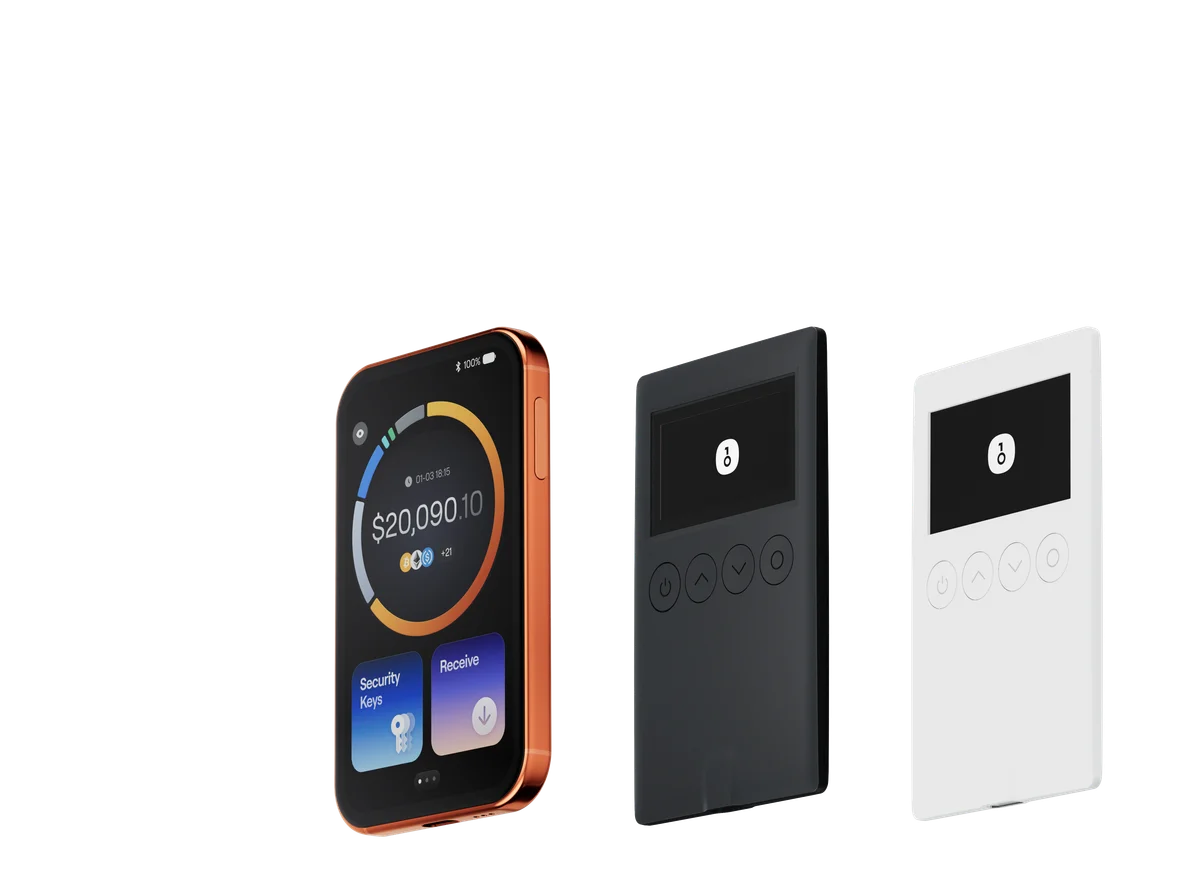
You cannot download a physical "cold wallet" directly onto an iPhone. You can download OneKey App. If you create only a software wallet in the app, the mobile wallet environment manages the keys. To isolate critical signing on a separate device, you also need a physical OneKey hardware wallet and use the app to manage the account and initiate transactions.
Why downloading an app does not create a cold wallet
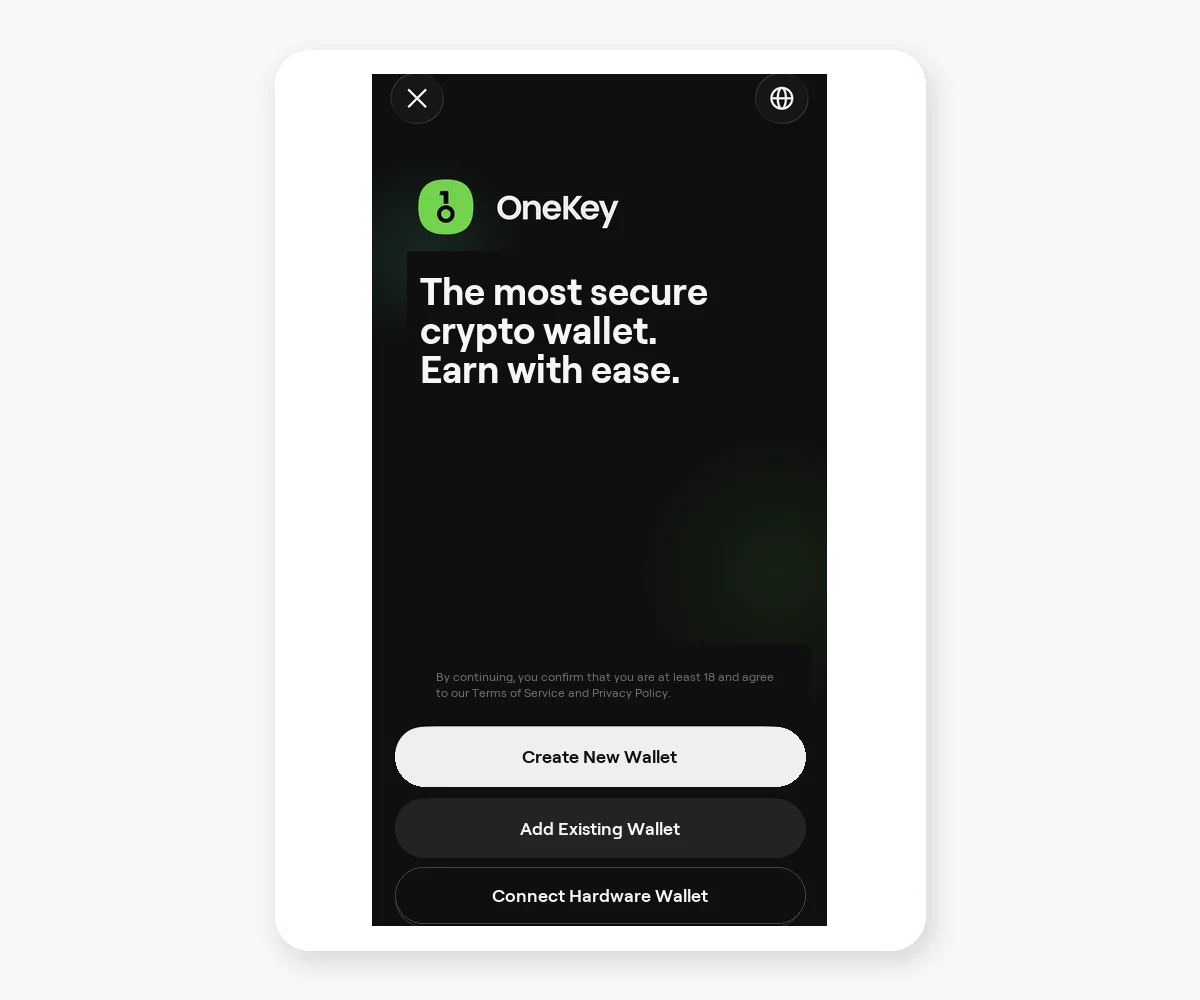 OneKey App first-use screen with entries to create a new wallet, add an existing wallet, or connect a hardware wallet
Figure 1: OneKey App's first-use entries. You can create or add a software wallet in the app. For hardware isolation, select Connect hardware wallet and keep private-key storage and use on the physical device.
"Cold" describes the key and signing environment, not an App Store label. OneKey App can operate as a software wallet on its own or connect to a OneKey hardware wallet. Both modes let you view accounts and construct transactions on the phone, but hardware mode requires critical signatures to be confirmed on the physical device. The hardware recovery phrase should never enter the iPhone.
If you type a hardware-wallet recovery phrase into an app, website, or connected computer, the account no longer retains its original hardware-isolation boundary. Do not provide the phrase even to someone claiming to be official support or after-sales service.
The correct setup order
- Install the iOS app from the official OneKey download page.
- Buy the physical device from the official OneKey Store or an officially confirmed channel. Reject any seller-provided, prewritten recovery phrase.
- Initialize the device by following its screen and official instructions, then generate and back up the recovery phrase offline yourself.
- Add the hardware wallet in OneKey App and verify the account address after connecting.
- When sending a transaction, review the asset, address, amount, and readable signing information on the hardware screen before confirming.
The phone handles the network connection, display, and broadcast; the hardware device holds the signing key and confirms the transaction. Do not skip the device-screen check merely because the app labels an account as a hardware account.
Which setup is better for a beginner?
For small learning amounts, you can first understand the backup responsibility of a software wallet. For long-term storage or a larger balance, hardware signing may be appropriate. Amount is not the only factor; consider transaction frequency, your ability to protect backups, and whether you can consistently follow the device-confirmation process.
Risk Warning
A hardware wallet cannot eliminate phishing, address replacement, incorrect approvals, or backup leaks. The purchase channel and intact-looking packaging do not replace device-initialization checks. You must generate the recovery phrase yourself through the official device flow and store it offline. Do not photograph it, upload it to cloud storage, enter it into an app, or give it to support.
References
- Official OneKey download
- Official OneKey Store
- OneKey App Getting Started
- OneKey: Add and delete wallets in the app
- OneKey App security features
FAQ's
No. A wallet created only in the app is a software wallet. Hardware isolation requires a physical OneKey hardware wallet.
Usually, the app manages accounts and constructs and broadcasts transactions, while the hardware device confirms the critical signature.
You should not. Doing so breaks the boundary that keeps the recovery phrase inside the hardware flow.
Prefer the official OneKey Store or an officially confirmed channel, and initialize the device yourself.
No. You still need to verify the address, amount, and signing details on the device screen and prevent recovery-phrase leaks.