How to Secure OneKey After Downloading: iPhone Recovery Phrase, App Lock, and Test Transfer

Key Takeaways
-
Recovery-phrase, Keyless, and hardware wallets have different recovery boundaries. Do not screenshot recovery data, upload it, or give it to support.
-
Set a separate app password and enable Face ID if appropriate, but biometrics cannot replace recovery data.
-
Complete a small send-and-receive test, then consistently verify the domain, network, address, amount, and hardware-device screen.
Downloading OneKey does not automatically make the wallet secure. What determines whether assets can be recovered and signatures can be trusted is the wallet type selected during setup, how recovery data is stored, and the checks you perform before every transfer.
Step 1: Understand the recovery method
When creating a recovery-phrase wallet in OneKey App, write the phrase down offline. Do not take a screenshot, copy it into a chat app, or upload it to cloud storage. For a Keyless wallet, follow the official OneKey Keyless process to protect the linked account, PIN, and other recovery factors. When connecting a hardware wallet, use the hardware recovery phrase only in the device's official initialization or recovery process; never import it into the iPhone.
Do not mix these three methods. In particular, entering a hardware recovery phrase into a software wallet for "easier syncing" changes the original isolation boundary.
Step 2: Protect access to the app
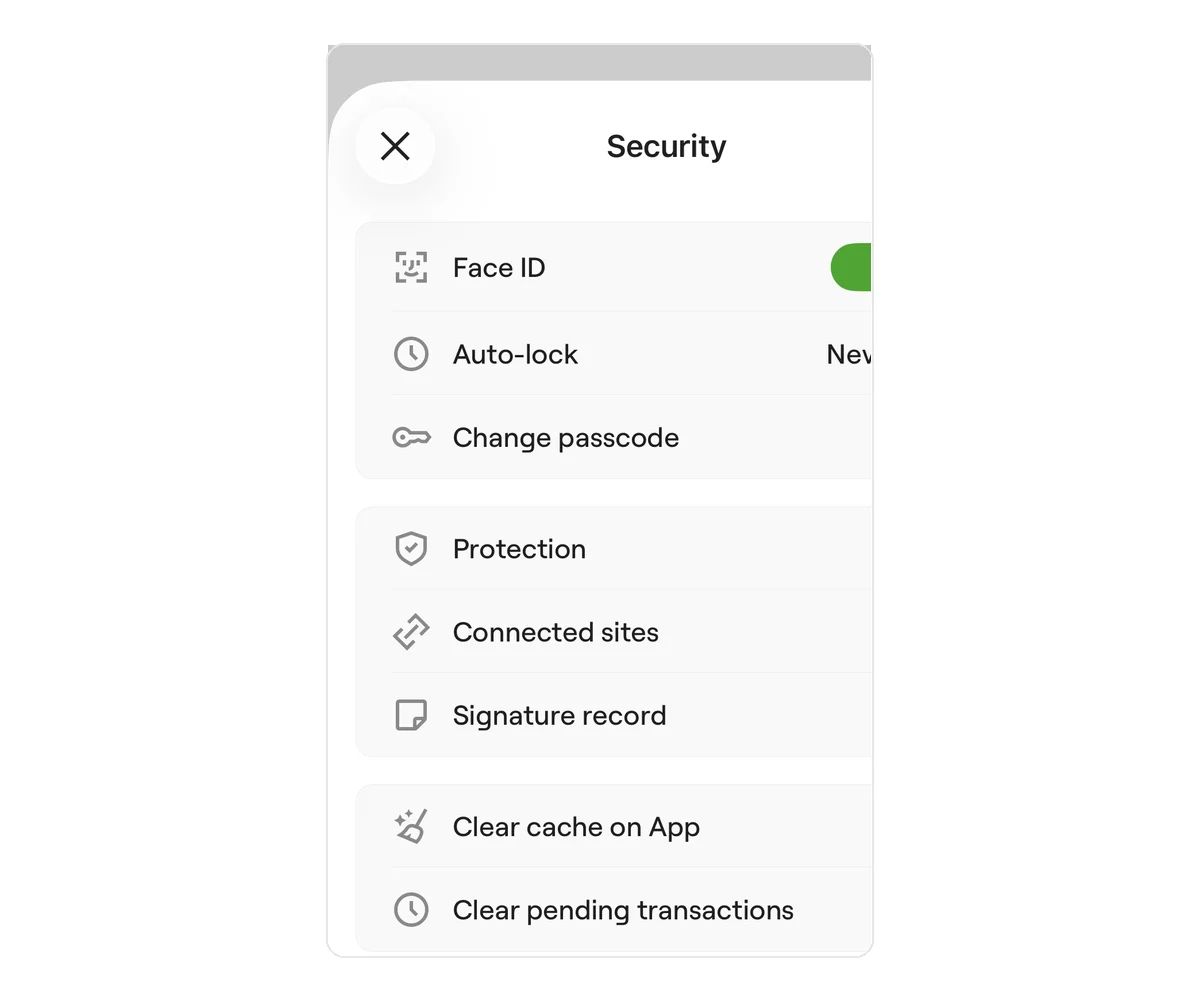 OneKey English security settings on iPhone
Figure 1: The OneKey English security-settings page on iPhone. Auto-lock set to "Never" is only the state in this screenshot. For everyday use, choose a shorter auto-lock interval based on your risk and usage pattern.
Set a dedicated OneKey App password that is different from the phone unlock code. Enable Face ID if appropriate, but biometrics are a local access convenience and cannot replace a recovery phrase or other recovery data. Do not keep a verification code, PIN, app password, and recovery data in the same screenshot or note.
Step 3: Complete a safe small-value test
- Select the correct account and network in OneKey, tap Receive, and copy the address.
- Send an affordable small amount from a trusted sender.
- Verify the receiving network, asset, and TXID.
- Send a small amount to another address you control and check the address, amount, network fee, and transaction details on the confirmation page.
- For a hardware account, verify everything again on the device screen instead of checking only the phone.
A small test cannot prove that every future transaction will be safe, but it can expose a wrong network, address-copying error, or unfamiliar step before the amount becomes larger.
Step 4: Establish everyday signing rules
Verify the domain and network before connecting to a DApp. Before signing, check the asset changes, approval recipient, and amount. OneKey SignGuard, Clear Signing, address-similarity detection, and transaction previews can provide supporting warnings, but complex or less common transactions may not be parsed completely. No warning system replaces your final review.
Consider separating long-term assets from the account used for frequent DApp interactions. Use a small test for a new address, and verify the complete address through another trusted channel before a large transfer.
Risk Warning
You are responsible for the recovery data of a self-custody wallet. OneKey, Apple, a DApp, or anyone claiming to be security support should never ask for your recovery phrase, private key, or hardware-wallet recovery phrase. App lock, Face ID, risk warnings, and a hardware wallet are not absolute protection. Incorrect signatures and on-chain transfers are generally irreversible.
References
- OneKey App security features
- OneKey: Keyless wallet
- OneKey: SignGuard and Clear Signing
- OneKey: Send and receive crypto assets
- OneKey App Getting Started
FAQ's
Choose whether you will use a software, Keyless, or hardware wallet, then protect its recovery data through the corresponding official process.
You should not. Screenshots, cloud sync, and chat apps all increase the exposure risk.
Yes. Face ID controls local access and cannot restore the wallet after a lost device or reinstallation.
A small test checks the network, address, deposit, and withdrawal flow while keeping the possible loss within a controlled amount.
No. Parsing and warnings cover supported scenarios only; you still need to review and reject an abnormal signature.