Transfer Crypto to OneKey Wallet: Exchange to Self-Custody Guide
Key Takeaways
-
English Version|Exchange Transfer Guide|Self-Custody and Trading Guide
-
Key idea: Moving assets from an exchange to OneKey is not about leaving them idle. It is about bringing asset control, trading access, and risk checks into a self-custody environment. Users can migrate to self-custody first, then use OneKey App to explore perpetual trading, multi-asset trading, and hardware-wallet signing when needed.
1. Why Move Assets from an Exchange to Self-Custody?
Keeping crypto on an exchange means your assets sit inside someone else’s system. You rely on that platform’s security, operations, withdrawal policies, and long-term stability every time you want to access your funds.
OneKey gives you a different path: self-custody by default. Your private keys stay with you, and you decide when, where, and how your assets move. With OneKey App and OneKey hardware wallets, you can manage crypto with more transparency, stronger control, and less dependence on centralized platforms.
Self-custody also comes with responsibility. You need to back up your recovery phrase properly, protect it offline, and stay alert when approving transactions or signing messages. For users who care about real ownership, that extra responsibility is often the price of true financial independence.
Operating principle: On-chain transfers are irreversible. Before transferring from an exchange, always check the asset, network, address, amount, and memo/tag requirements. For a first transfer, always send a small test amount first.
2. How to Get Started with OneKey
Install and open OneKey App, then create or import a wallet. Your recovery phrase should be stored offline and kept only by you. Do not screenshot it, send it to anyone, or enter it on an unfamiliar website or support chat.
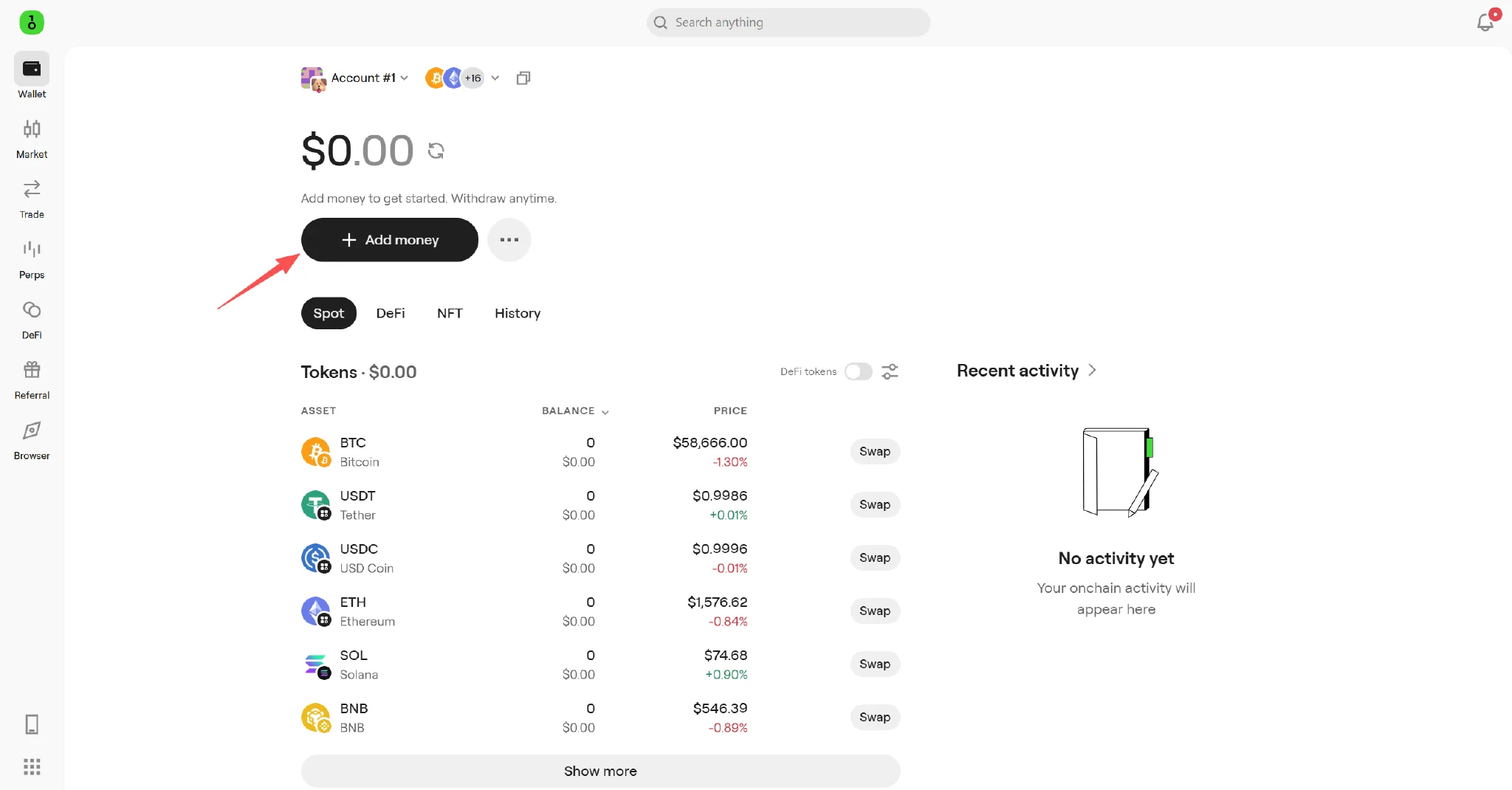
From the wallet home screen, tap “Add Money.” This entry point can be used to receive assets, move assets from an exchange, or access other funding options.
 OneKey transfer guide screenshot
Figure 1: Tap “Add Money” on the OneKey wallet home screen to enter the asset-receiving flow.
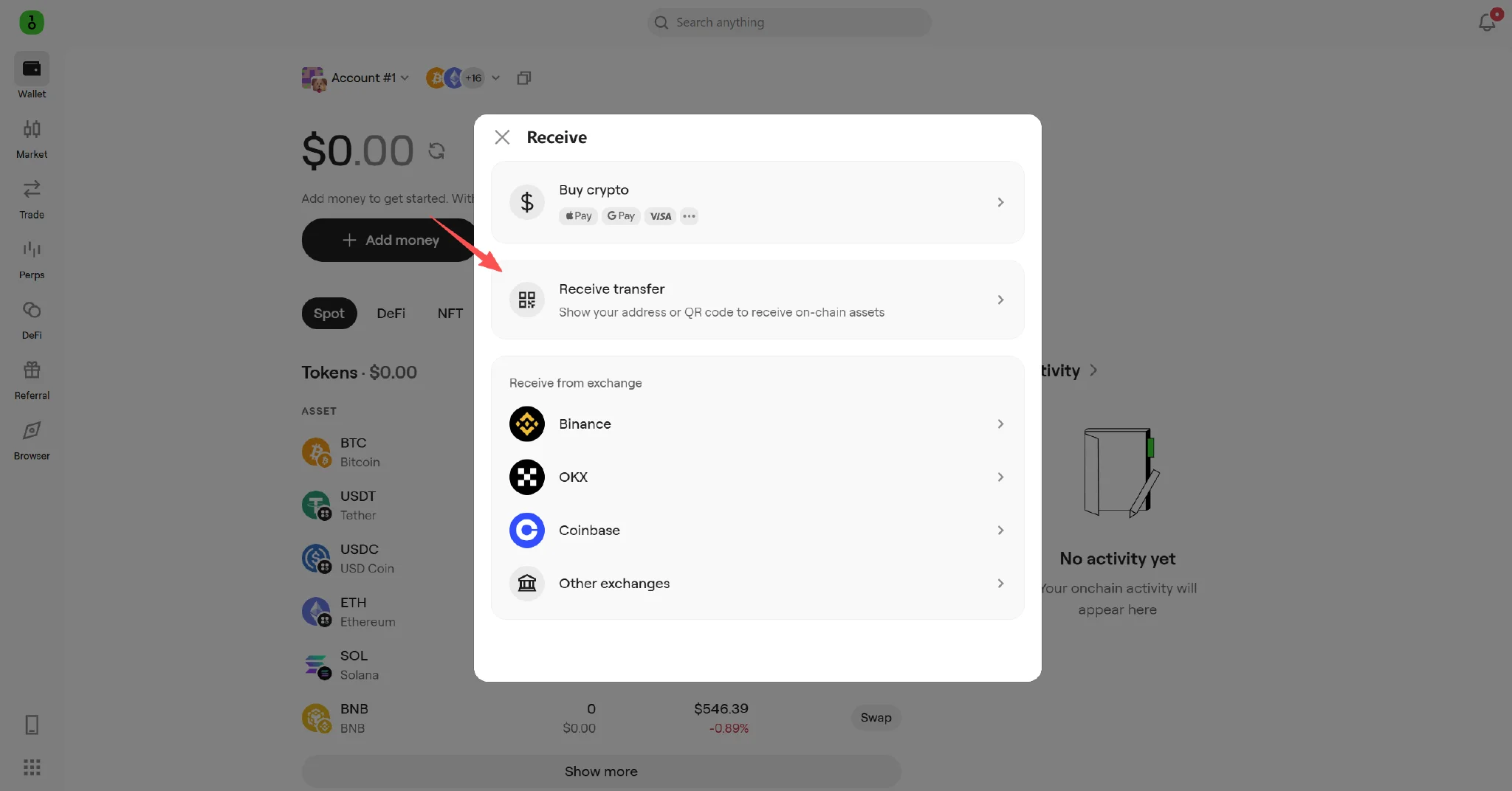
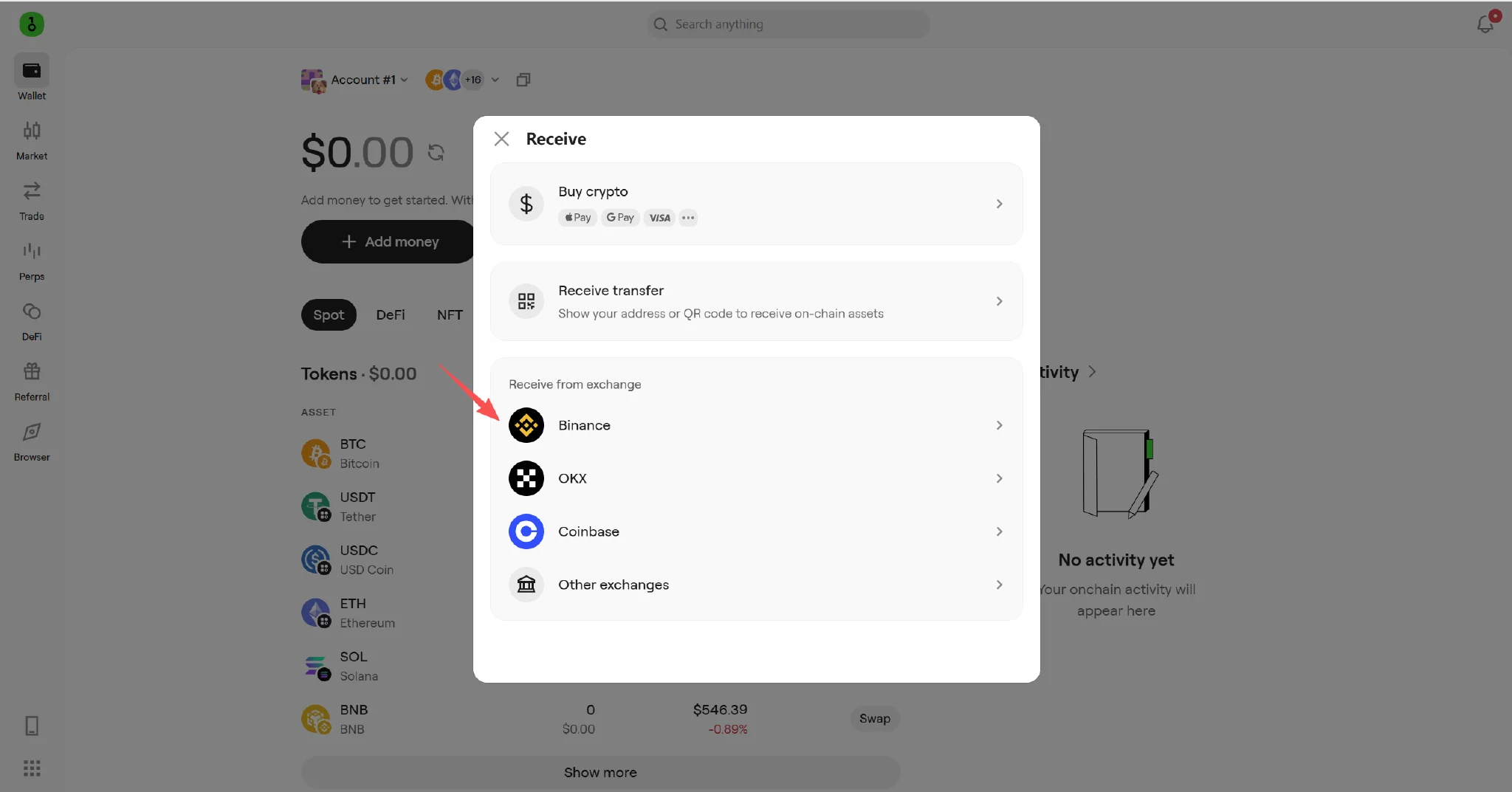
On the Receive page, users will commonly see two paths:
-
Receive transfer: Shows your receiving address or QR code. This is useful when you already know which asset and network you want to receive, and you plan to withdraw manually from an exchange.
-
Receive from exchange: Lets users choose an exchange and follow the corresponding transfer guide. This is useful for first-time users moving assets from an exchange to OneKey, or for users who want to verify the exchange-specific steps.
 OneKey transfer guide screenshot
Figure 2: “Receive transfer” shows the on-chain receiving address or QR code for your selected asset.
 OneKey transfer guide screenshot
Figure 3: “Receive from exchange” provides transfer guidance by exchange name.
3. Step-by-Step: Using Receive from Exchange
Path A: View the Binance Transfer Guide from OneKey
-
Open OneKey App, go to the wallet home screen, and tap “Add Money.”
-
On the Receive page, choose “Receive from exchange.”
-
Choose Binance to view the corresponding transfer and withdrawal guide.
-
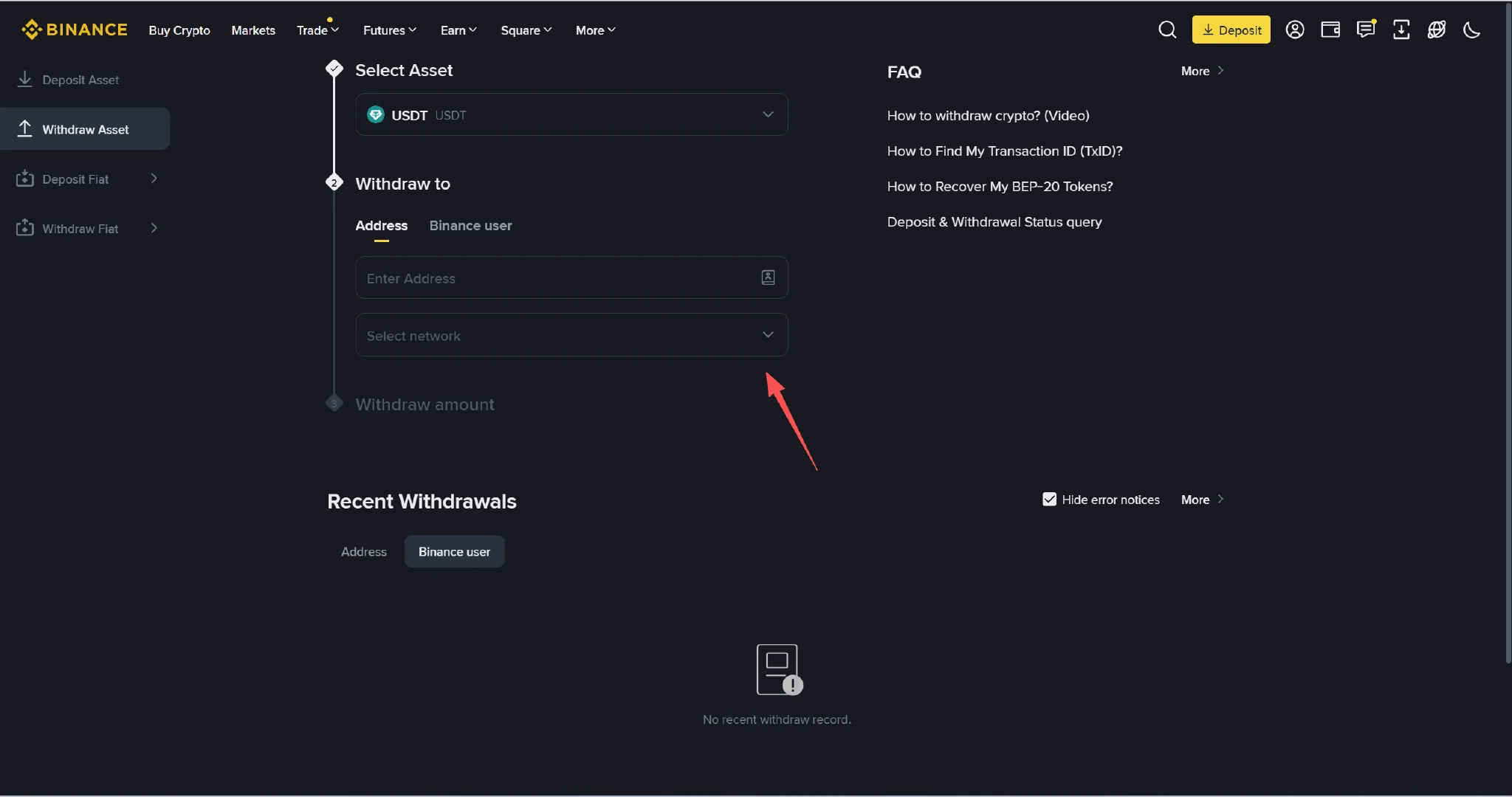
Follow the guide to open the Binance withdrawal page, then choose the asset you want to transfer out.
-
Check the receiving network shown in OneKey, and select the exact same network on the Binance withdrawal page.
-
Enter the amount, check the fee, estimated arrival time, and the first and last characters of the address, then submit.
The value of this path is that it makes the exchange-specific transfer process clearer. It does not replace the user’s final checks. Asset, network, address, and memo/tag must still be verified one by one.
Path B: Copy the OneKey Address and Withdraw Manually from the Exchange
-
In OneKey App, tap “Add Money,” then choose “Receive transfer.”
-
Select the asset you want to receive, such as USDT, ETH, or BTC.
-
Select the correct network, then copy the receiving address shown in OneKey or use the QR code.
-
Open the withdrawal page on the exchange and choose the same asset.
-
Paste the OneKey receiving address into the withdrawal address field.
-
Select the exact same network as shown in OneKey. Do not choose a network only because the fee is lower.
-
If the asset or network requires a memo/tag, enter it exactly as shown by OneKey.
-
Send a small test amount first. After it arrives, transfer a larger amount if needed.
 OneKey transfer guide screenshot
Figure 4: On the Binance withdrawal page, enter the OneKey receiving address and select the exact same network as shown in OneKey.
Common mistakes: Choosing the right asset but the wrong network, copying the wrong address, missing a memo/tag, or skipping the small test transfer. These mistakes may cause assets to fail to arrive or become unrecoverable.
4. Why Choose OneKey?
Completing the transfer is only the first step. OneKey is designed to help users manage assets, trade perpetuals, and access multi-asset markets on top of self-custody, rather than treating self-custody as “holding only.”
-
Institutional trust: OneKey is trusted by leading global institutions, with BN + CB investment backing. For users, this means OneKey is built as a long-term self-custody gateway, not a temporary tool.
-
Open-source security: OneKey follows a self-custody and open-source approach. As one of the only mainstream open-source wallets, key code can be verified on GitHub. Security should be transparent, checkable, and verifiable.
-
Hardware-wallet protection: OneKey App supports OneKey, Ledger, Trezor, and other mainstream hardware wallets. Users who already own Ledger or Trezor devices can keep using them while getting a smoother wallet management and trading experience through OneKey.
-
Multi-asset trading in one app: Stocks, oil, gold, crypto assets, and other market entries are brought together as much as possible inside one app. Actual availability depends on in-app display, local laws and regulations, and service terms.
-
No account-style identity friction and privacy transfer/trading features: Within a self-custody framework, users can rely less on centralized account flows when receiving, managing, transferring, and trading assets. Availability depends on local laws and regulations, in-app display, and service terms.
-
OneKey Perps trading: Users can open the Perps page in OneKey App to review supported markets, margin, fees, leverage rules, and risk notices. Users are encouraged to understand the risks and fee structure first, then decide whether to trade.
A practical approach is to use OneKey to receive and manage assets, use a hardware wallet for long-term or larger balances, and check spot, perpetual, and multi-asset trading entries in OneKey App when you want to trade. Understand the rules first, then confirm the action.
References
Disclaimer
This document is for product education only and does not constitute investment, legal, or tax advice. On-chain transfers and perpetual trading involve risks. Before taking action, users should independently confirm the asset, network, address, memo/tag, fees, contract rules, local laws and regulations, and service terms. Features, asset coverage, and availability in OneKey App are subject to the actual app version, local laws and regulations, and service terms.
FAQ's
Yes. Moving assets to OneKey is designed to return asset control and signing confirmation to the user, not to limit trading use cases. Users can still access perpetual trading and multi-asset trading entries in OneKey App, while reviewing the asset type, trading rules, fee structure, and related risks before making any transaction.
Send a small test amount first. Confirm the asset, network, address, memo/tag, and arrival status before transferring a larger amount.
Yes. OneKey App supports OneKey, Ledger, Trezor, and other mainstream hardware wallets, so users do not need to give up the devices they already own.
Store it offline and keep it only to yourself. Do not screenshot it, upload it to cloud storage, or send it to anyone.